Home / App Guide / Getting around / Map
How to use the PantauSivik Map: layers, incidents and your active trip
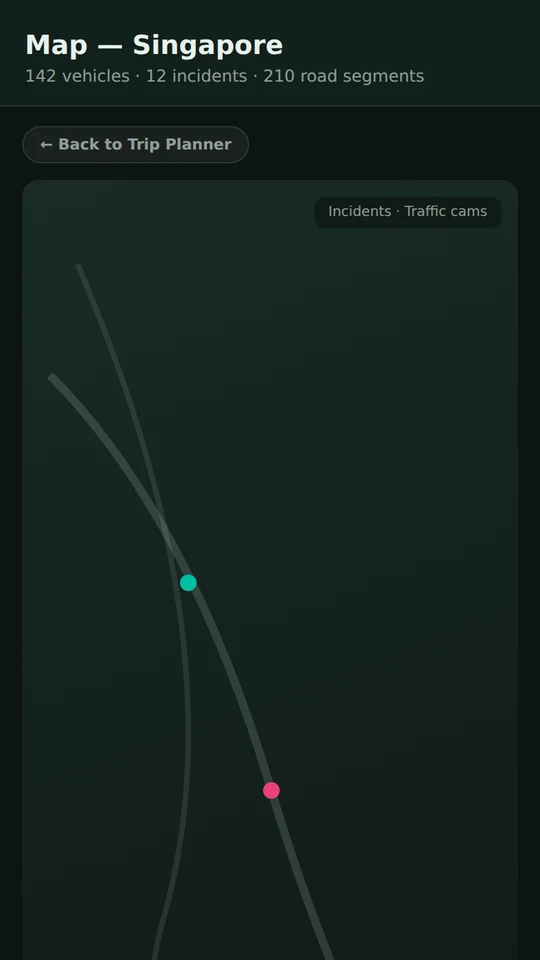
Short answer: open the Map from the More page to see road incidents and other layers around Singapore, switch layers on or off with the chips, and tap a pin for details. If you plan a trip in the Trip Planner, tap Plot on map to draw the route here and follow it while the trip is active.
What the Map shows
The Singapore Map uses OneMap tiles. The heading shows the live counts the app is tracking, such as vehicles, incidents and road segments. On the map you will see:
- Road incidents as pins. Tap a pin for the details, and use the filter to narrow them by kind, such as accident, vehicle breakdown, roadwork or others.
- Speed Bands, an optional layer that colours road segments green, amber or red by how fast traffic is moving.
- Other layer chips such as traffic cameras, flood alerts, dengue clusters, lightning from the last 30 minutes and bicycle parking. A chip appears only when that layer has data to show.
Some layers are shaded circles, not pins, because they cover an area. Bus stops and bicycle parking appear when you zoom in, to keep the map readable.
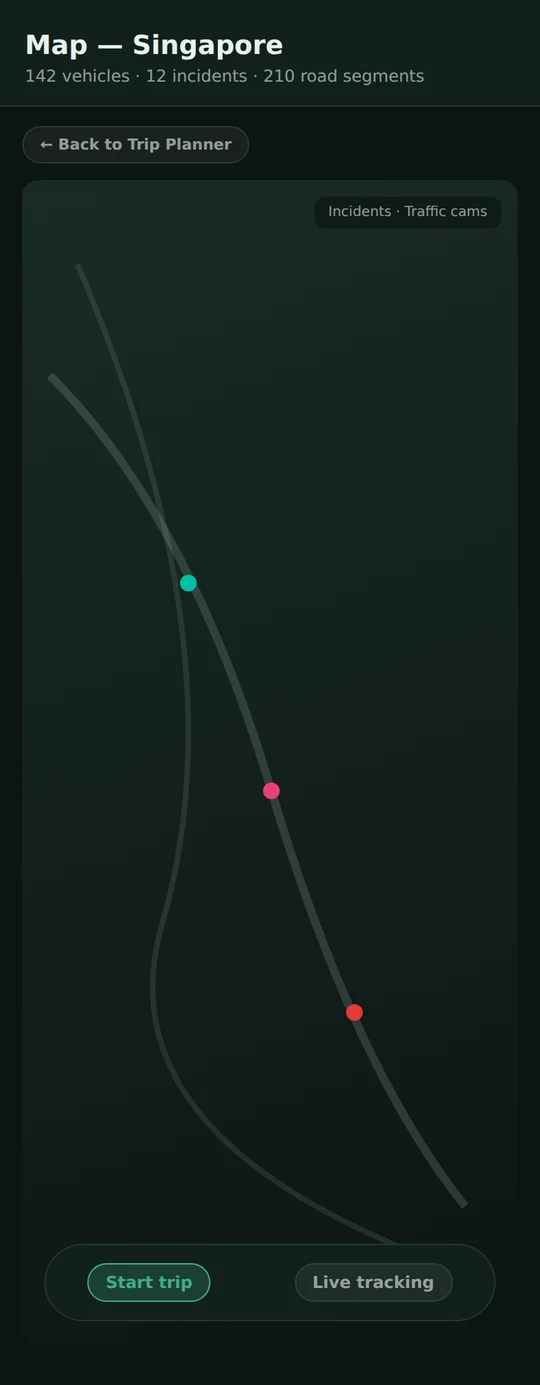
Use the layers
- Open More, then Map.
- Tap the layer chips to switch layers on or off. Start with Road incidents and Speed Bands before you drive.
- Tap a pin to read the details.
- Tap Nearest to draw thin lines to the closest item in each layer you have switched on, with its distance.
Live tracking and Center on me
Switch on Live tracking to show your position as a pulsing dot that the map follows. Tap Center on me to jump back to where you are after you have panned away. Allow location when the app asks. It reads your location only while the app is open.
Plot a route from the Trip Planner
- Plan a trip in the Trip Planner.
- Tap Plot on map on the result you want.
- The route is drawn above the Speed Bands, with each leg in its own colour for walking, bus and rail.
- Tap Back to Trip Planner to change the trip.
One route is drawn at a time, so plotting another replaces the first.
Follow an active trip
Start the trip from the Trip Planner card on the dashboard when you set off, or tap Start trip on the Map once a route is plotted. While the trip is active, a pill shows En route with the time and Heading to the next stop. Expand it to see the step list, which moves along with your location while the app is open. Tap I've arrived when you get there, or View on map to jump back to the route.

Tips
- Before driving, check Road incidents and Speed Bands, then read expressway travel times and traffic cameras.
- On a rainy evening, switch on the lightning chip to see recent strikes before you set off.
- If a layer chip is missing, that layer has no data right now.
Good to know
Map data comes from public sources and can be delayed. This guide covers the Singapore Map. Screens and wording can change a little between app versions.
Information comes from public sources and is there to help you plan. PantauSivik is independent and not affiliated with any government agency.
Frequently asked questions
Does the Map track me all the time?
No. Your position shows while the app is open and Live tracking is on. The app does not track you in the background.
Can I plot a route on the Map?
Yes. Plan a trip in the Trip Planner, then tap Plot on map on the result you want. One route is drawn at a time.
What are Speed Bands?
Speed Bands is an optional layer that colours road segments by how fast traffic is moving, from green to amber and red.
Is the Map turn by turn navigation?
No. The Map shows layers and your plotted route. Drive trips in the Trip Planner give turn by turn directions.
See also: Trip Planner guide, Customise your dashboard, Traffic guide, Bus arrivals guide, Carparks guide, Public Alerts guide, Night road closures and bus diversions.
Spotted a mistake? Report an error on this page.